How to add customer testimonials to your Shopify store
Updated · 5 min read · By George Ryder
Customer testimonials help a Shopify store in the same places that product reviews can't: your home page, your About page and anywhere you talk about the business rather than one product. This guide shows two ways to add them, through your theme or with a testimonial widget, without installing an app or editing theme code.
Option 1: your theme's own sections
In Shopify admin, go to Online Store → Themes and click Customize.
Choose the page from the menu at the top, for example Home page.
Click Add section and look for a Testimonials section.
Many themes include one. If yours doesn't, a Multicolumn or Rich text section works for a few quotes: one column per testimonial, with the name underneath.
Type in each testimonial, then click Save.
This is quick, but every new testimonial means editing the theme again, and you need to keep your own record that each customer agreed to be quoted.
Option 2: a testimonial widget in a Custom Liquid section
A testimonial widget is a short snippet from a testimonial tool. Add it once and new testimonials appear as you approve them. Most snippets look like this:
<script async src="https://trytestimonials.com/widget.js"></script>
<div class="tc-wall" data-wall="your-wall-code"></div>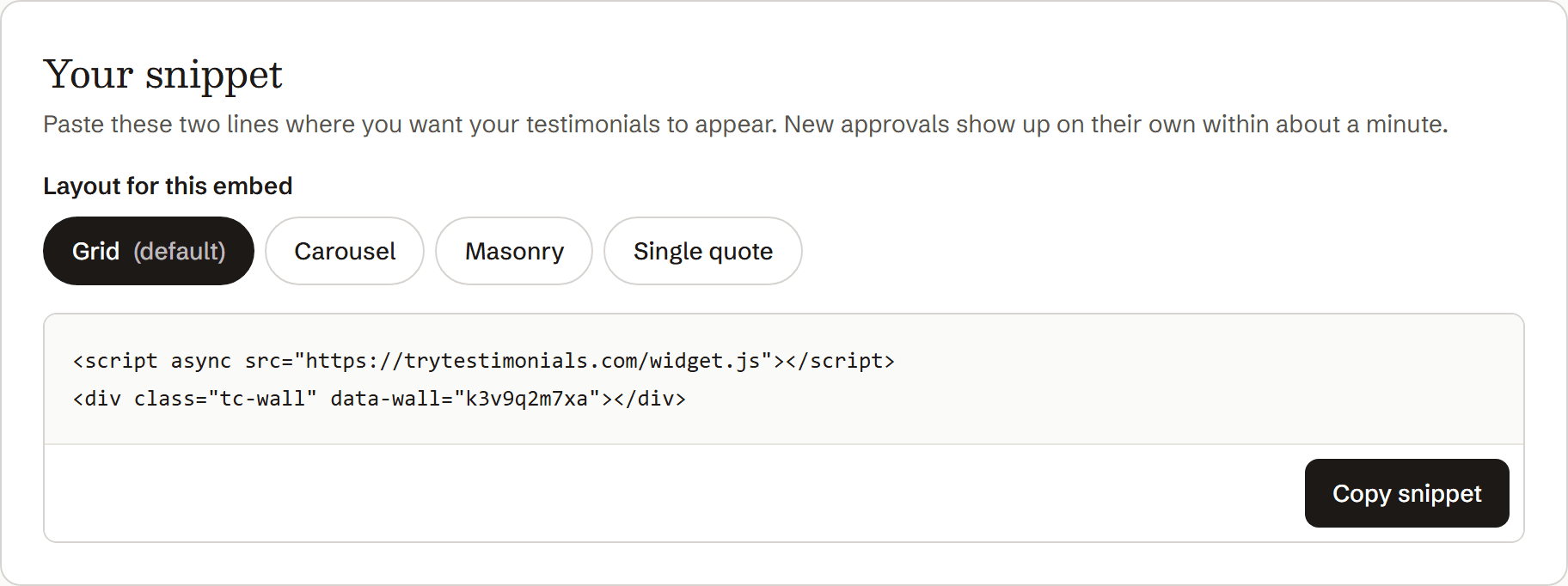
Copy the snippet from your testimonial tool.
Go to Online Store → Themes and click Customize.
Pick the page from the menu at the top (Home page, a page template, or Products).
Click Add section and choose Custom Liquid.
It's available in Shopify's free themes and most Online Store 2.0 themes. Despite the name, it accepts ordinary HTML and scripts.
Paste the snippet into the Liquid code box.
Drag the section to where you want it, then click Save.
Open your store in a private window to check it.
On one page only, such as About
Sections added to the Pages template appear on every page that uses that template. To show testimonials on one page only, create a new page template in the theme editor (from the page menu at the top), add the Custom Liquid section to it, then assign that template to the page in Online Store → Pages.
On product pages
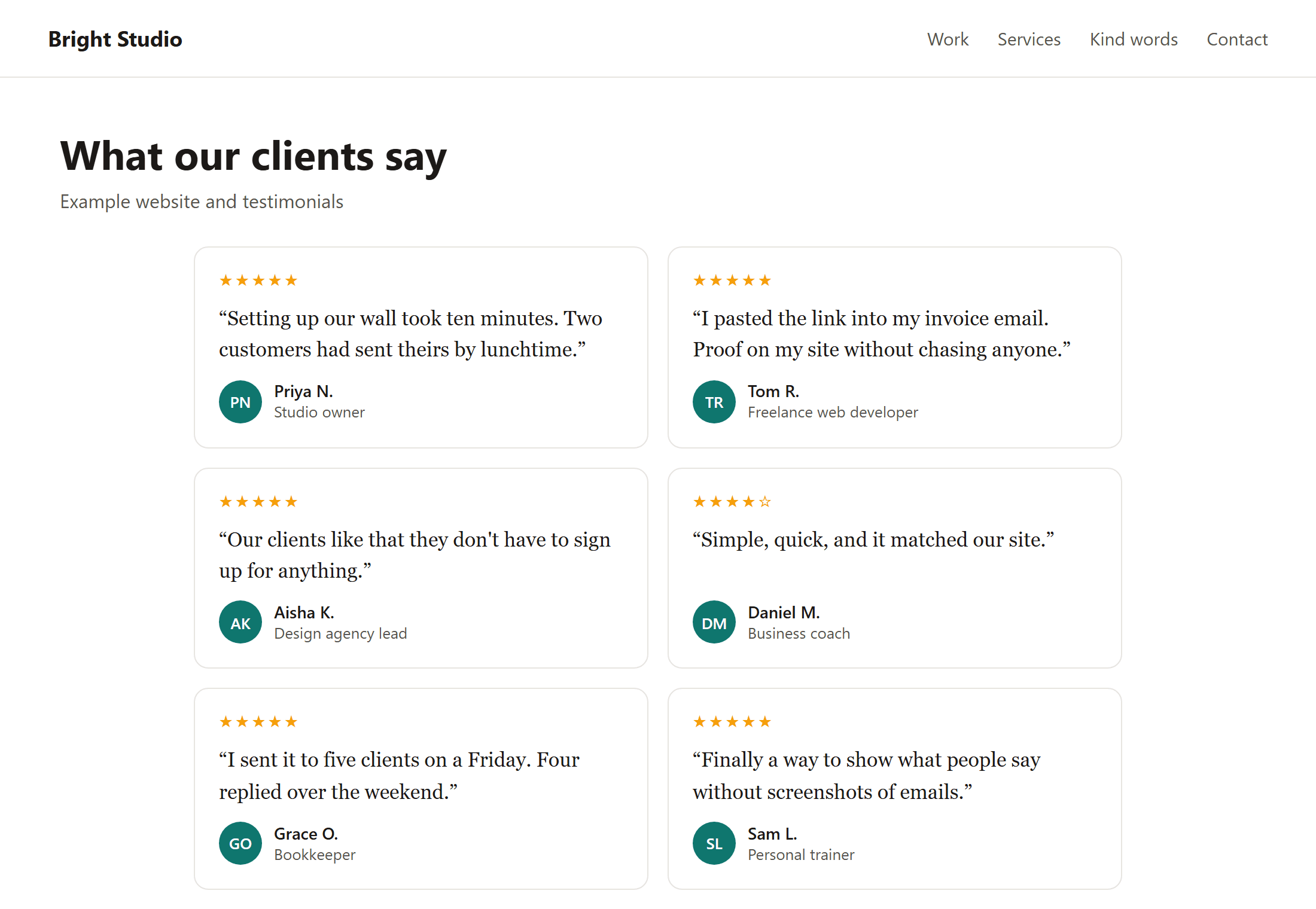
Add the section to the Products template and it appears on every product page. That suits store-wide testimonials, such as “Fast delivery and lovely packaging”.
If it doesn't appear
- There's no Custom Liquid section. Some older themes don't have one. Check your theme's documentation for a “custom HTML” or “custom content” section, or ask the theme developer.
- You're looking at checkout. Shopify doesn't let you add your own code to checkout pages, so put testimonials on the pages before it.
- You saved a different theme. If you edited a duplicate, it won't show until you publish it.
Where testimonials help a store most
- The home page, below the first banner.
- The About page, where people decide whether to trust you.
- Product pages, for things product reviews don't cover: service, delivery, returns.
- Your contact or FAQ page, to reassure first-time buyers.
Asking at the right moment makes a big difference: see How to ask customers for testimonials, and these request templates.
Questions
Do I need a Shopify app for testimonials?
No. The Custom Liquid section is built into most themes, so any testimonial tool with an embed snippet works without installing an app.
Will it slow my store down?
A small script loaded with async shouldn't noticeably affect speed. Avoid tools that load large scripts, fonts or tracking code.
Can I ask for a testimonial in Shopify's emails?
You can edit Shopify's emails in Settings → Notifications, but the order and shipping confirmations go out before the customer has their order. The better moment is a few days after delivery, so send a short follow-up email then, with your collection link.