How to add testimonials to WordPress
Updated · 6 min read · By George Ryder
There are two ways to put testimonials on a WordPress site. You can type them into a block yourself, or you can embed a testimonial widget that collects them from customers and updates on its own. This guide covers both, in the block editor, Elementor and the classic editor, and how to fix it when the widget doesn't appear.
Option 1: add testimonials by hand
If you have two or three quotes and they won't change often, WordPress's built-in blocks are enough. You'll need the customer's permission to show their words and name, and you'll copy each new one in yourself.
In the block editor
Open the page and click the + button where you want the testimonials.
Search for “Quote” and add a Quote block.
Type the testimonial into the quote, and the person's name and role into the citation line underneath.
For several side by side, add a Columns block first.
Choose two or three columns and put a Quote block in each. On phones, the columns stack automatically.
Click Update (or Publish).
Check the live page, including on your phone.
In Elementor
Elementor has a Testimonial widget in its free version. Drag it onto the page, then fill in the content, name, title and an optional photo. If you have Elementor Pro, its Testimonial Carousel widget shows several in a slider. Either way you are still copying each testimonial in by hand.
Option 2: embed a testimonial widget
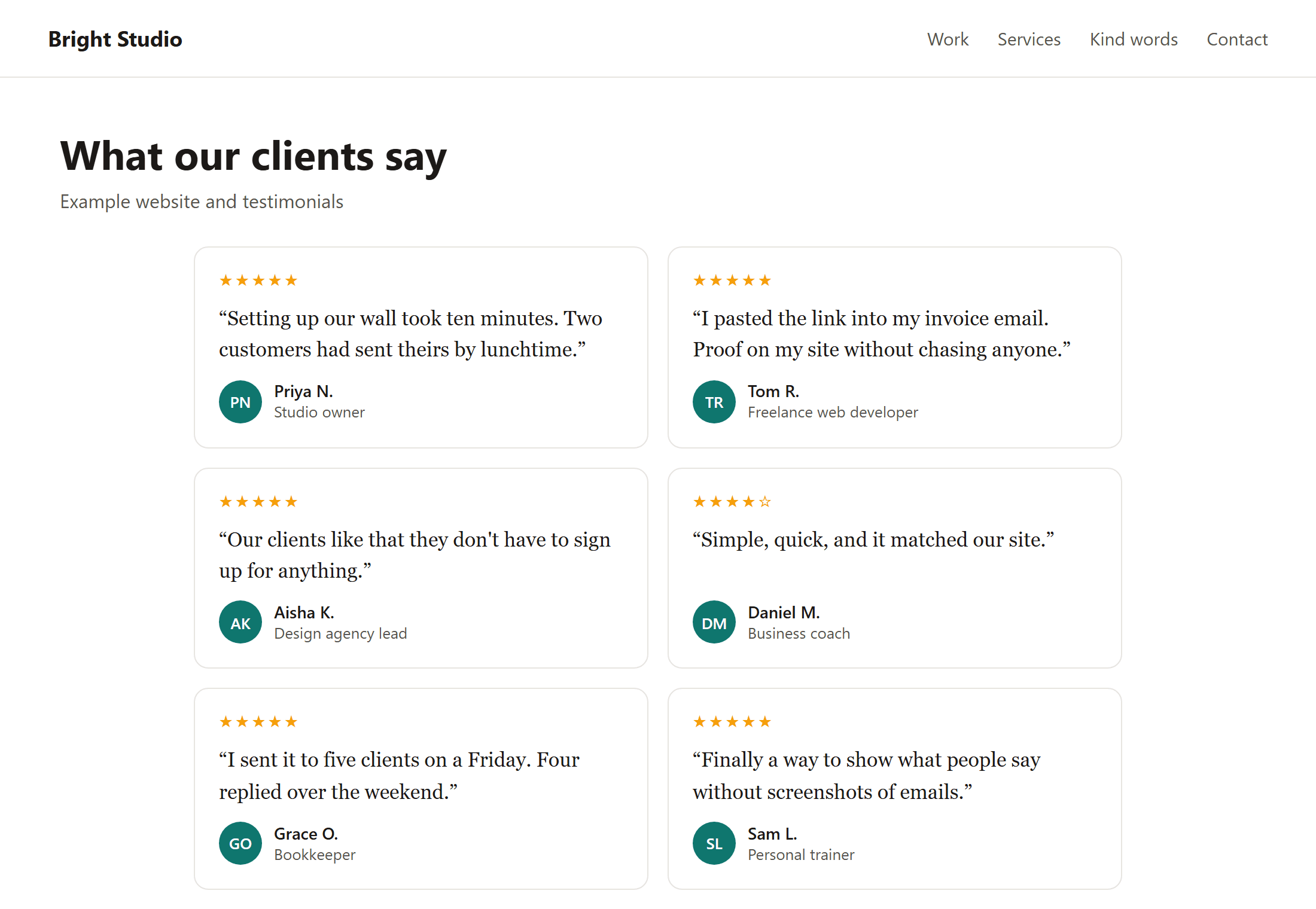
A testimonial widget is a short piece of code from a testimonial tool. You paste it once, and from then on new testimonials appear on the page as you approve them. There's nothing to copy across and no page to edit each time. Most tools give you a snippet that looks like this:
<script async src="https://trytestimonials.com/widget.js"></script>
<div class="tc-wall" data-wall="your-wall-code"></div>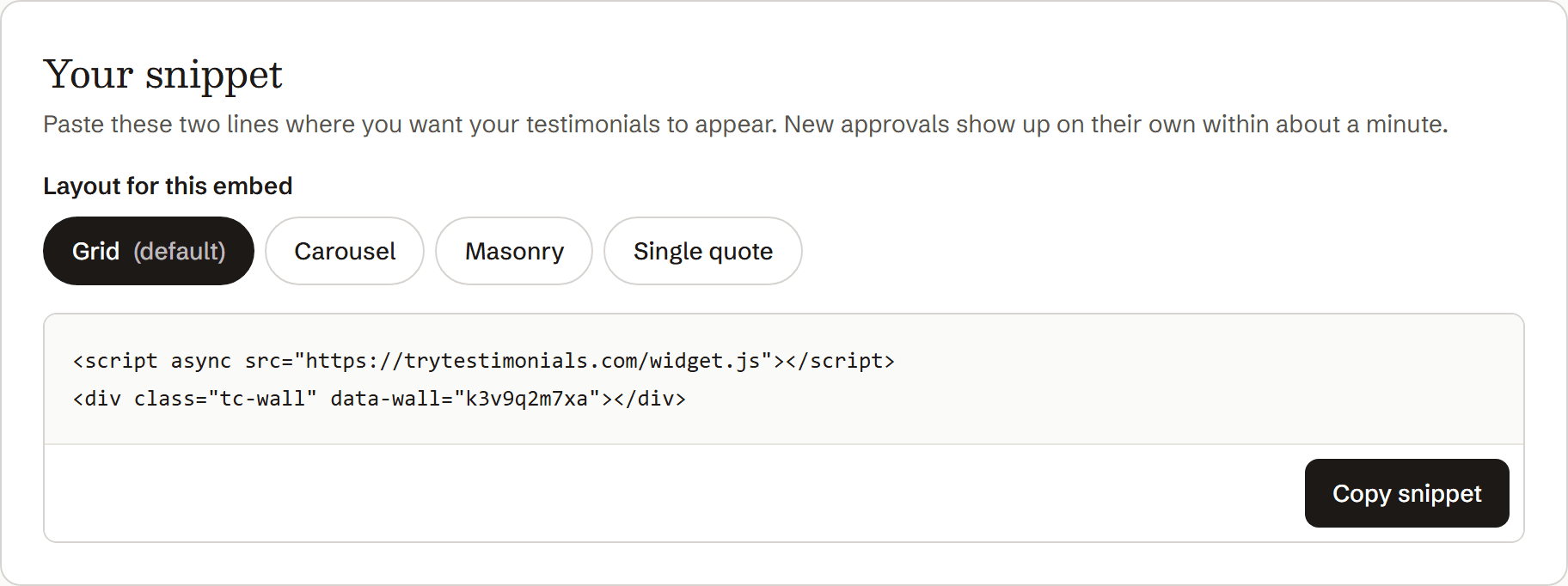
In the block editor (Gutenberg)
Copy your snippet from your testimonial tool.
Open the page in WordPress and click + where the testimonials should go.
Search for “Custom HTML” and add that block.
It's in the Widgets group. Don't use a Paragraph or Code block: those show the code as text instead of running it.
Paste the snippet into the block.
The block's Preview button may show an empty box. That's normal for script-based widgets.
Click Update, then open the live page to check.
It's best to check in a private window, so you see what visitors see.
In Elementor
Edit the page with Elementor.
Search the widget panel for “HTML” and drag the HTML widget onto the page.
This is the plain HTML widget, which comes with the free version.
Paste the snippet into the HTML Code box.
Click Update, then check the published page.
Elementor's editor doesn't always run scripts, so the widget may only show on the live page.
In the classic editor
Switch the editor from Visual to Text (also labelled Code), paste the snippet where you want the testimonials, and click Update. If you paste it in the Visual tab, WordPress treats it as text.
In a sidebar or footer
With a classic theme, go to Appearance → Widgets and add a Custom HTML widget to the sidebar or footer. With a block theme, go to Appearance → Editor, open the footer or sidebar template part, and add a Custom HTML block there.
If the testimonials don't appear
- You're on WordPress.com. WordPress.com removes script code on plans that don't allow it. If the block is empty after saving, check whether your plan allows custom code or plugins. Self-hosted WordPress (WordPress.org) doesn't have this limit.
- Your user role can't save scripts. WordPress only lets administrators (and, on a single site, editors) save script code. If you're an author or contributor, the code is stripped when you save. Ask an administrator to add the block.
- A speed or caching plugin is delaying it. Plugins that “delay JavaScript” or combine scripts can hold the widget back until someone scrolls or clicks. Add the widget's script address to the plugin's exclusions, then clear the cache.
- You're looking at an old cached page. Clear your caching plugin's cache after publishing, and check in a private window.
- It shows the code as text. The snippet is in the wrong kind of block. Move it to a Custom HTML block (or Elementor's HTML widget).
Where to put testimonials on a WordPress site
- Your home page, just below the first section, where new visitors decide whether to keep reading.
- Service or product pages, next to what the testimonial is about.
- Near a button: above “Book a call”, “Get a quote” or “Buy”, where people hesitate.
- A dedicated “Kind words” page, for people who want to read more.
Getting good testimonials matters as much as showing them. See How to ask customers for testimonials, and ready-made request messages you can copy.
Questions
Do I need a testimonials plugin?
No. The Custom HTML block is built into WordPress, so a script-based widget needs no plugin. Testimonial plugins do exist, but each one adds updates to manage and code to your site.
Will a testimonial widget slow down my site?
A well-built one shouldn't. Look for a small script that loads with async, so it doesn't hold up the rest of your page, and that doesn't load web fonts or tracking code.
Can Google read testimonials inside a widget?
Google can run JavaScript, so it can usually see them. But if a particular quote matters for search, also include it as normal text somewhere on the page.
Can I show different testimonials on different pages?
With hand-made blocks, yes: add different quotes to each page. With a widget, it depends on the tool. Many let you filter by a group or tag, so your coaching page can show only coaching testimonials.