How to add testimonials to Squarespace
Updated · 5 min read · By George Ryder
Squarespace gives you two ways to show testimonials: Quote blocks you fill in yourself, or a Code block holding a testimonial widget that collects and updates them for you. This guide covers both, which Squarespace plan you need for code, and why the editor says “Script disabled”.
Option 1: Quote blocks
Open the page and click Edit.
Click Add Block (+) where you want the testimonial and choose Quote.
Type the testimonial, then add the person's name and role as the source.
Repeat for each testimonial, or place Quote blocks side by side to make columns.
Save, then check the page on your phone too.
Some Squarespace section designs include testimonial layouts as well: click Add Section and browse the designs. Either way, you'll be copying each new testimonial in by hand and keeping track of who agreed to be quoted.
Option 2: a testimonial widget in a Code block
A testimonial widget is a snippet of code from a testimonial tool. You add it once, and new testimonials appear as you approve them, so you never edit the page again. A typical snippet looks like this:
<script async src="https://trytestimonials.com/widget.js"></script>
<div class="tc-wall" data-wall="your-wall-code"></div>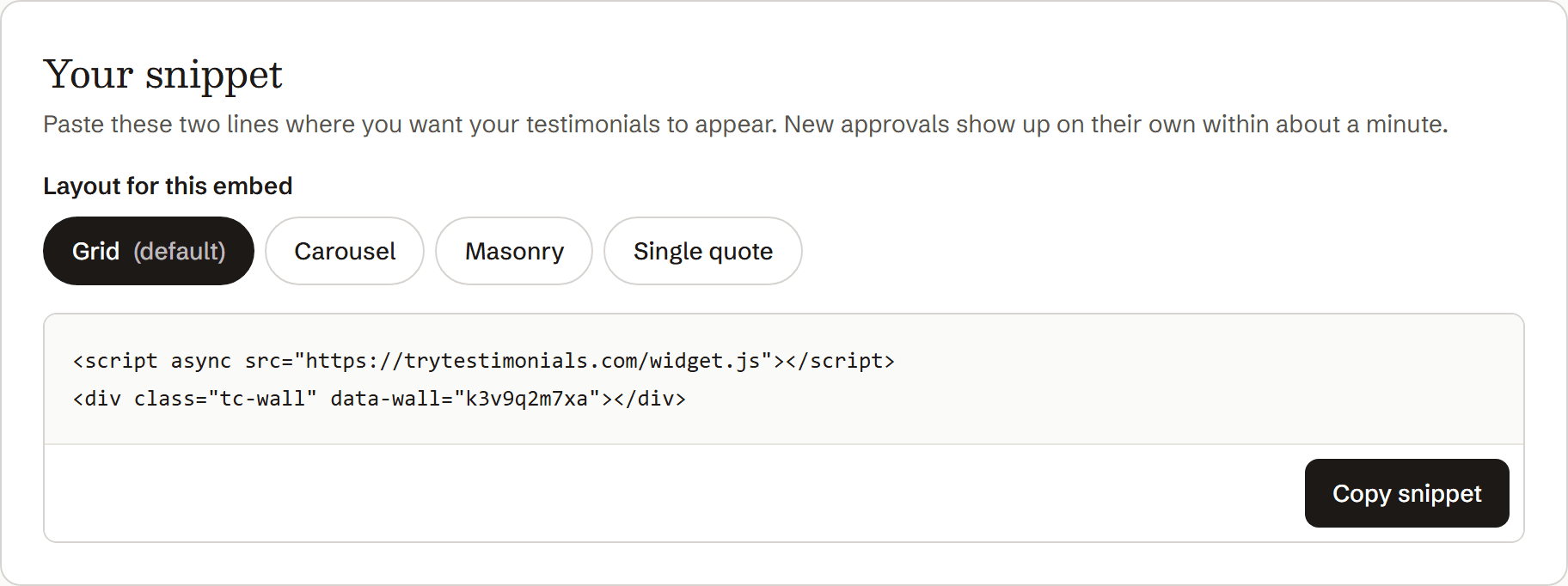
Copy the snippet from your testimonial tool.
Open the page in Squarespace and click Edit.
Click Add Block (+) where the testimonials should go and choose Code.
If you can't find it, type “Code” into the block search box. (Don't use the Markdown block or a Text block.)
Paste the snippet, check the mode is HTML, and turn Display Source off.
With Display Source on, visitors see the code itself rather than your testimonials.
Click outside the block, then Save.
While you're editing, the block may say “Script disabled”. That's Squarespace protecting the editor, not an error.
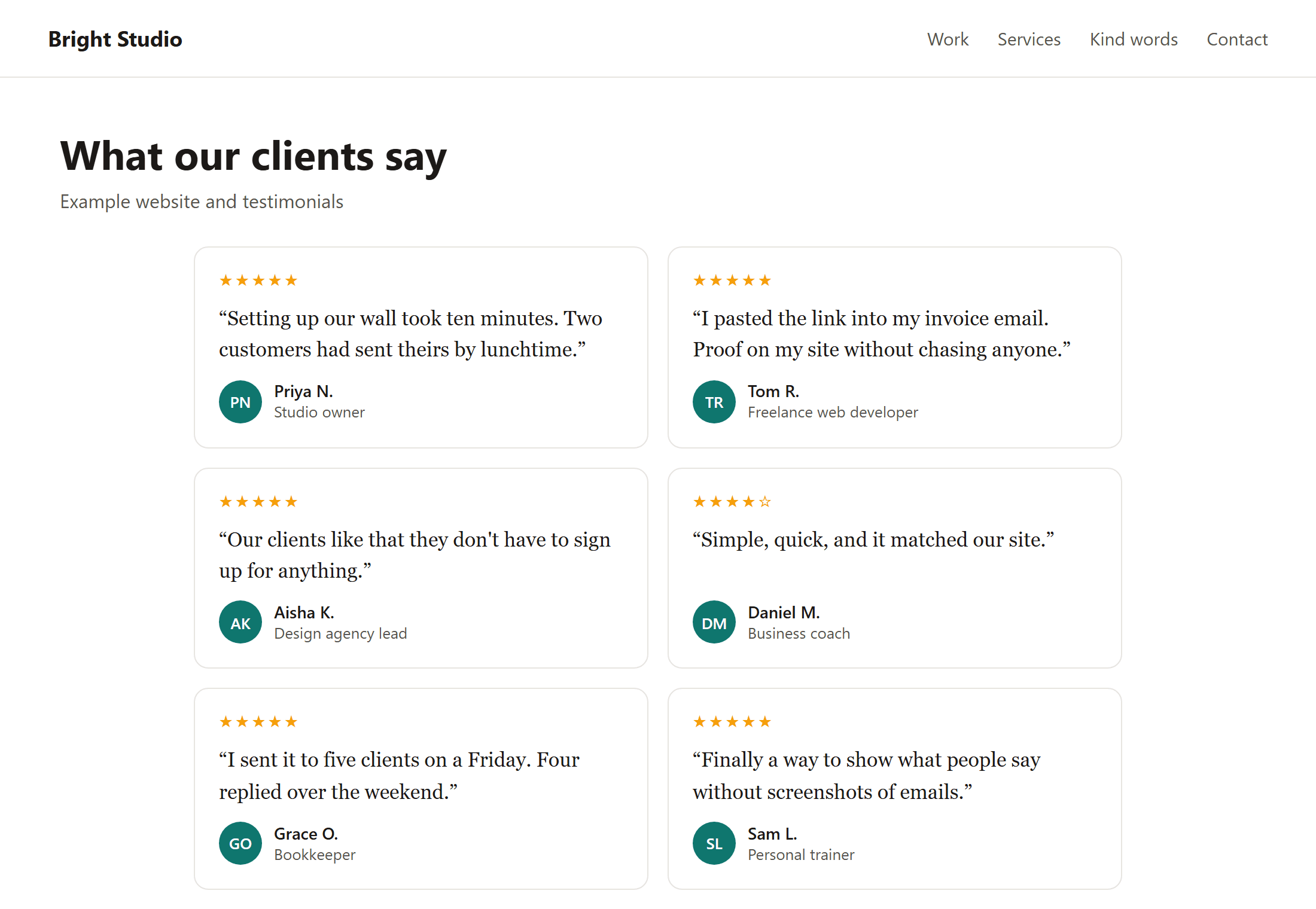
Open the live page in a private window to see the testimonials.
If it doesn't appear on the live site
- Your plan doesn't run scripts. See the plan note above. This is the most common cause on Squarespace.
- Display Source is on, so the code shows as text. Turn it off in the block's settings.
- It's in the wrong block. Markdown and Text blocks don't run code. Use a Code block.
- The page is password-protected or not published, so you're seeing a different version from your visitors. Check in a private window.
Where testimonials work best
Put them where visitors are making up their minds: below the first section of your home page, on your services or product pages, and just above your contact form or booking button. A full page of testimonials also helps people who want to read more before getting in touch.
To collect more, see How to ask customers for testimonials and these request templates.
Questions
Why does my Code block say “Script disabled”?
Squarespace doesn't run scripts while you're editing, so it shows that placeholder. Save the page and look at the live site instead.
Can I use Code Injection instead?
Code Injection adds code to every page's header or footer, which is meant for site-wide things like analytics. For testimonials in a particular place on a page, a Code block is the right tool.
Does this work on Squarespace 7.0 and 7.1?
Yes. Both versions have Quote and Code blocks, and the steps are almost identical.